

5 Keyboard Shortcuts for Selecting Cells and Ranges in Excel
Selecting cells efficiently is one of the most important skills in Excel. Instead of dragging your mouse across large datasets, you can use powerful keyboard shortcuts to move and select cells instantly. Here we will let you know 5 Keyboard Shortcuts for Selecting Cells and Ranges in Excel like Hold Shift and Press ➡ to Select Multiple Cells, Hold Control and Press ➡ to Jump to the Next Non-Empty Cell, Holding Control and pressing ➡ will also jump to the last non-empty cell, Hold Control + Shift, Then Press ➡ to Select All Non-Empty Cells & More.
Here are 5 Keyboard Shortcuts for Selecting Cells and Ranges in Excel every beginner must know.
1️⃣ Hold Shift and Press ➡ to Select Multiple Cells
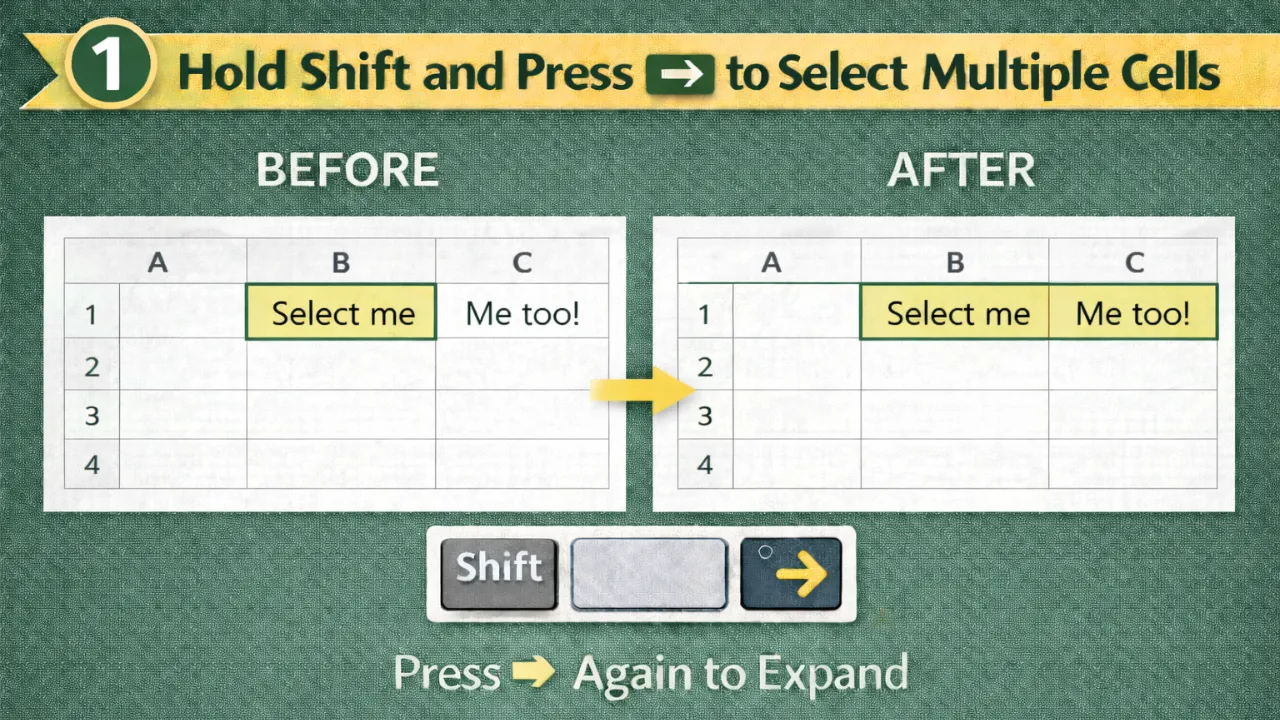
This shortcut allows you to select cells one at a time in any direction.
How It Works:
- Click on the starting cell.
- Hold Shift
- Press the Right Arrow (➡) key.
- Excel expands the selection by one cell.
- Keep pressing ➡ to select more cells.
You can also use:
- Shift + ⬅
- Shift + ⬆
- Shift + ⬇
Best For:
- Selecting small ranges
- Editing nearby data
- Applying formatting to adjacent cells
2️⃣ Hold Control and Press ➡ to Jump to the Next Non-Empty Cell
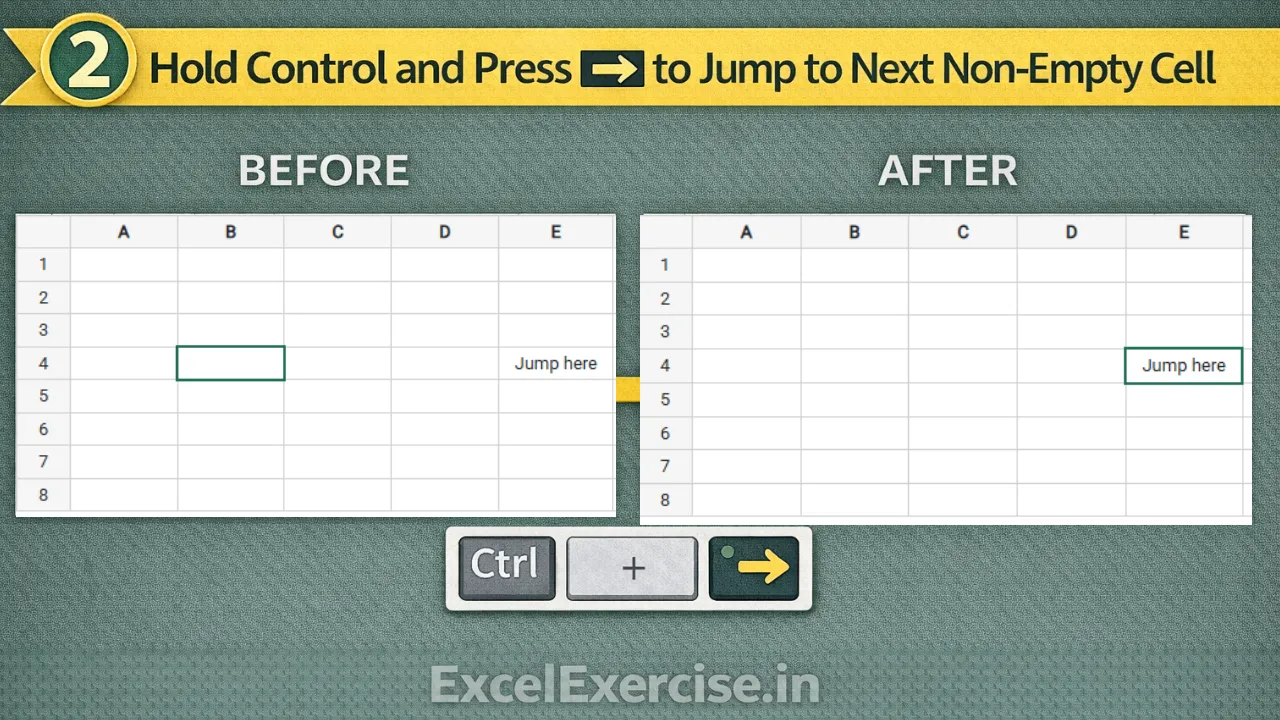
This shortcut helps you quickly move across data without selecting it.
How It Works:
- Click on a cell.
- Hold Ctrl
- Press the Right Arrow (➡) key.
- Excel jumps directly to the next non-empty cell.
It skips all empty cells in between.
Best For:
- Navigating large datasets
- Moving quickly across columns
- Checking last entered values
3️⃣ Holding Control and pressing ➡ will also jump to the last non-empty cell
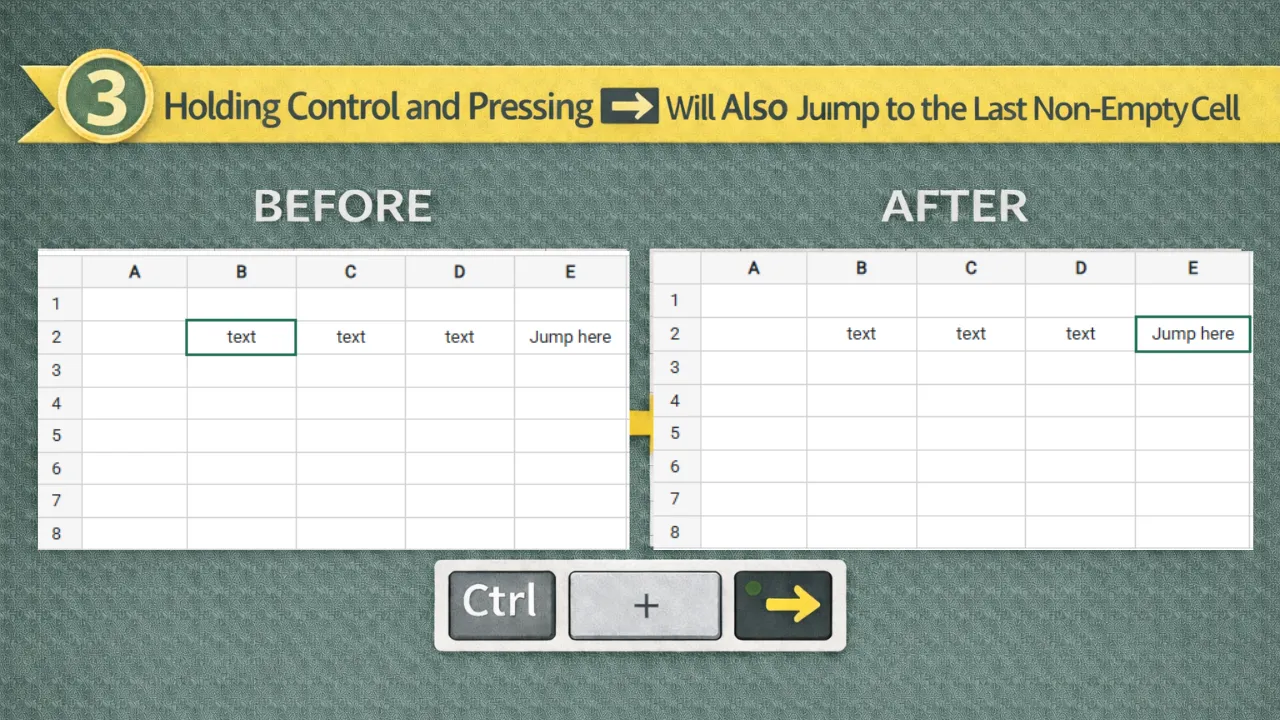
If you press Ctrl + ➡ repeatedly, Excel keeps jumping to the next data boundary.
When used within a continuous data range:
- Excel jumps to the last non-empty cell in that row.
Best For:
- Finding the end of a data list
- Quickly checking totals
- Reviewing large spreadsheets
4️⃣ Hold Control + Shift, Then Press ➡ to Select All Non-Empty Cells
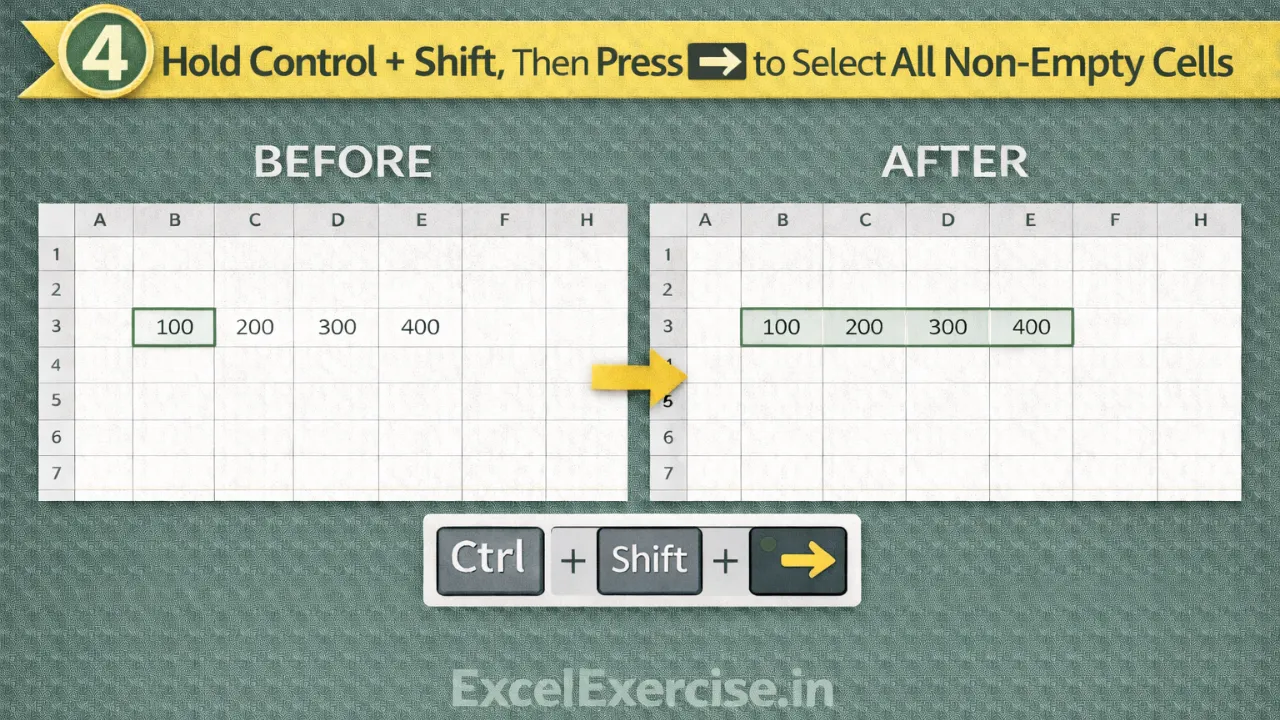
This is one of the most powerful selection shortcuts in Excel.
How It Works:
- Click on the first cell.
- Hold Ctrl + Shift
- Press ➡
Excel selects all continuous non-empty cells in that direction instantly.
Best For:
- Selecting full data ranges
- Preparing data for formatting
- Copying large tables
- Creating charts quickly
5️⃣ Bonus Tip: Combine Arrow Directions
You can use:
- Ctrl + Shift + ⬇
- Ctrl + Shift + ⬆
- Ctrl + Shift + ⬅
This allows you to select data vertically or horizontally depending on your dataset.
Why These Shortcuts Matter
Using these shortcuts:
- Saves time
- Reduces mouse dependency
- Improves speed and accuracy
- Makes you more professional in Excel
If you are serious about improving your Excel skills, mastering cell selection shortcuts is a must.
Important links:
