
Excel Number Formatting Shortcuts You Must Know to Work Faster
Working with numbers is one of the most common tasks in Excel. Whether you are preparing reports, managing data, or practicing Excel for exams and jobs, number formatting can take a lot of time if done manually.
Using Excel number formatting shortcuts can help you work faster, look more professional, and avoid mistakes. Here we are going to explain about Currency, Percentage, Date, Time Format Shortcut in Excel & More.
In this article, you will learn all the important Excel number formatting shortcuts, explained in a simple way with examples.
What Is Number Formatting in Excel?
Number formatting in Excel controls how numbers appear in a cell without changing their actual value.
For example, you can display a number as currency, percentage, date, or decimal using shortcuts.
Formatting helps to:
- Improve data readability
- Present reports professionally
- Save time while working with large datasets
Why Use Excel Number Formatting Shortcuts?
Using shortcut keys instead of menu options has many advantages:
- Saves a lot of time
- Reduces mouse usage
- Improves workflow speed
- Helpful in exams, office work, and data analysis
- Makes you look more professional at work
Most Useful Excel Number Formatting Shortcuts
Below are the must-know number formatting shortcuts that every Excel user should remember.
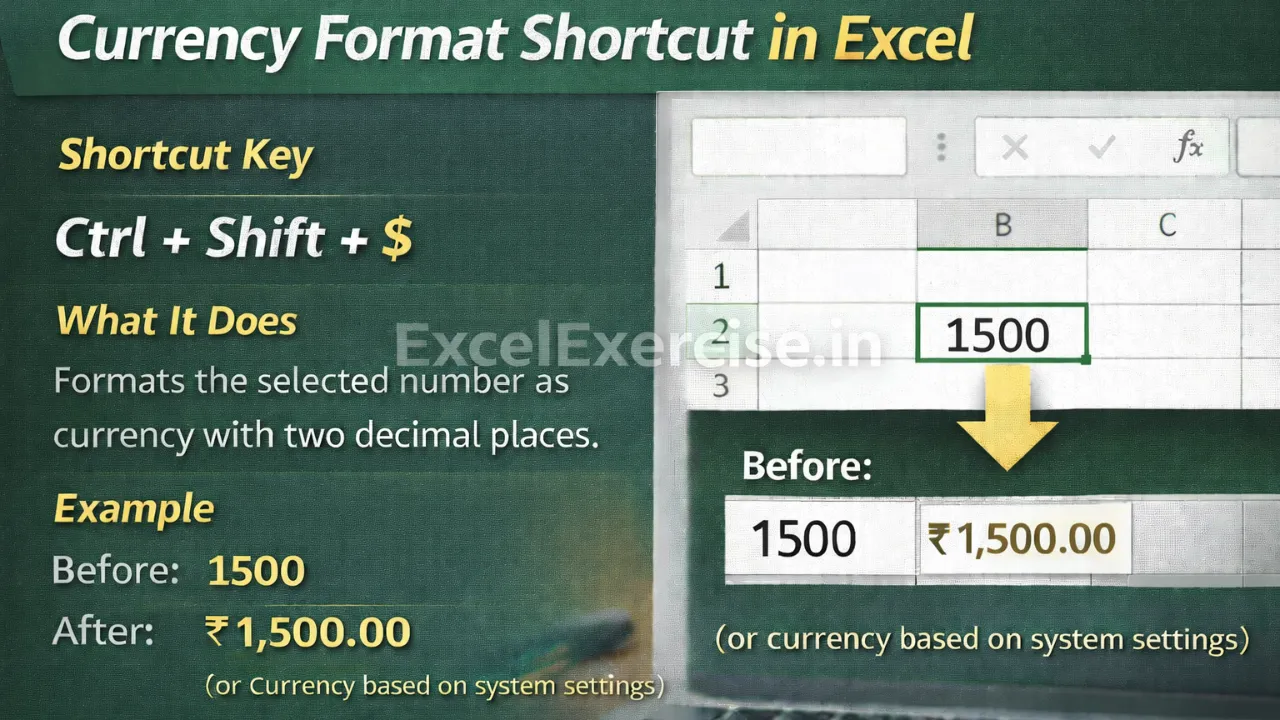
Currency Format Shortcut in Excel
Shortcut Key
Ctrl + Shift + $
What It Does
Formats the selected number as currency with two decimal places.
Example
- Before: 1500
- After: ₹1,500.00 (or currency based on system settings)
This shortcut is commonly used in:
- Salary sheets
- Financial reports
- Expense tracking
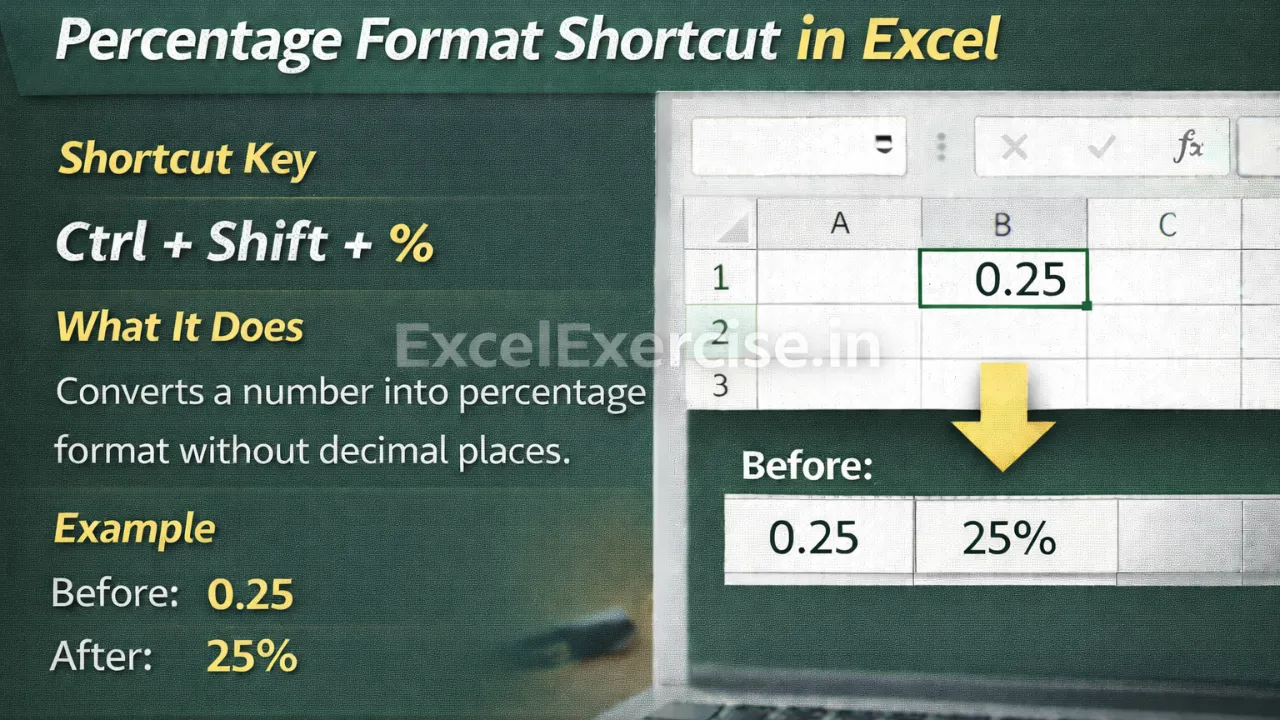
Percentage Format Shortcut in Excel
Shortcut Key
Ctrl + Shift + %
What It Does
Converts a number into percentage format without decimal places.
Example
- Before: 0.25
- After: 25%
Useful for:
- Result analysis
- Growth rates
- Marks and performance reports
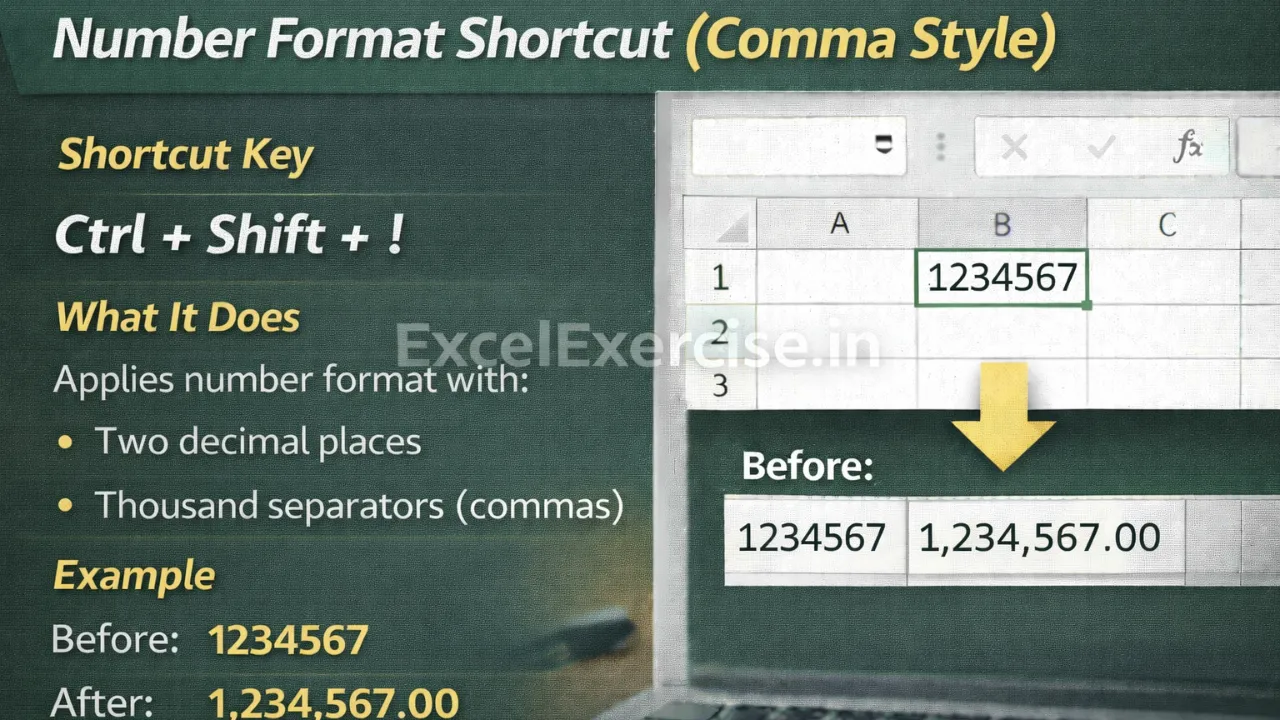
Number Format Shortcut (Comma Style)
Shortcut Key
Ctrl + Shift + !
What It Does
Applies number format with:
- Two decimal places
- Thousand separators (commas)
Example
- Before: 1234567
- After: 1,234,567.00
Best for:
- Large numeric data
- Reports and dashboards
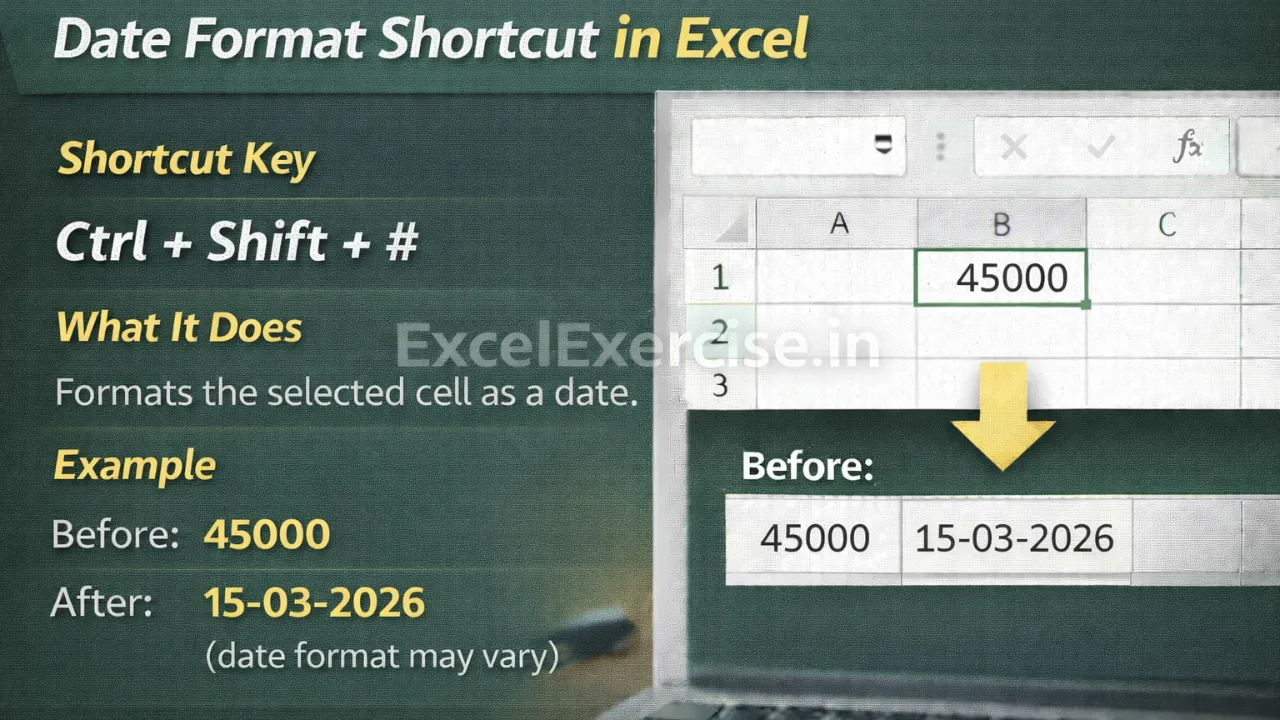
Date Format Shortcut in Excel
Shortcut Key
Ctrl + Shift + #
What It Does
Formats the selected cell as a date.
Example
- Before: 45000
- After: 15-03-2026 (date format may vary)
Very useful when:
- Working with raw data
- Importing numbers that represent dates
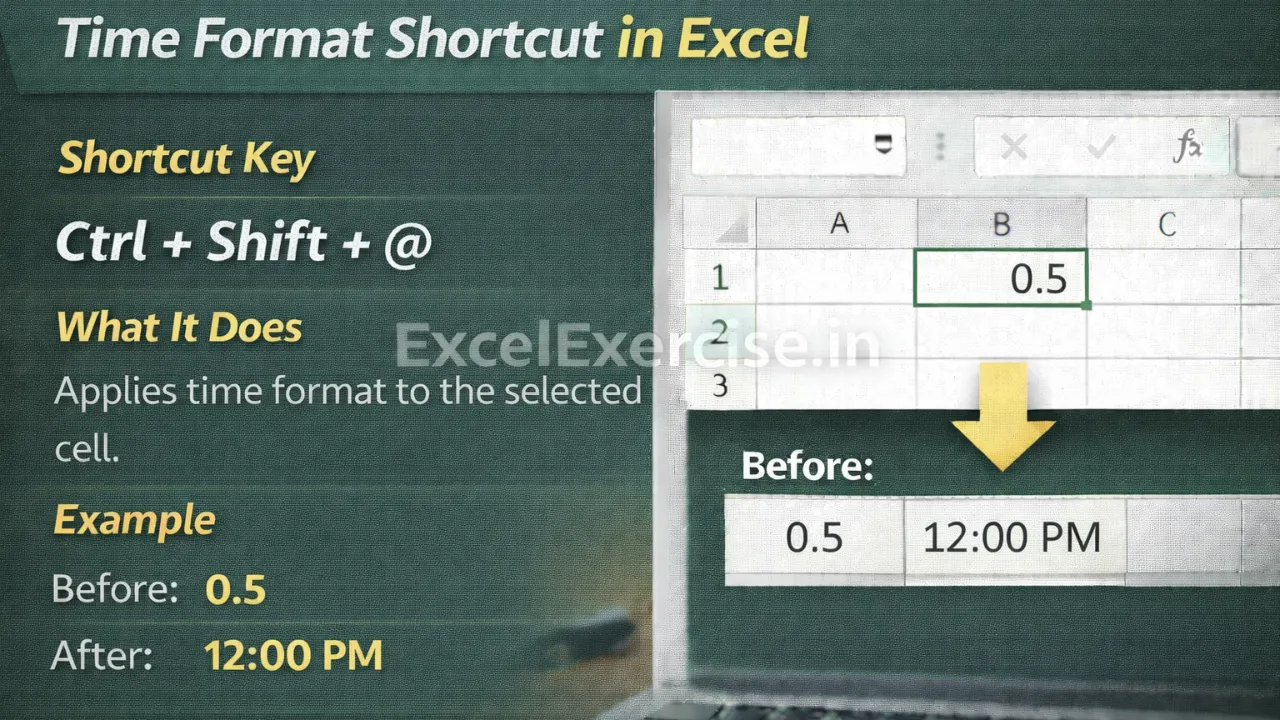
Time Format Shortcut in Excel
Shortcut Key
Ctrl + Shift + @
What It Does
Applies time format to the selected cell.
Example
- Before: 0.5
- After: 12:00 PM
Helpful for:
- Attendance sheets
- Shift timings
- Time tracking
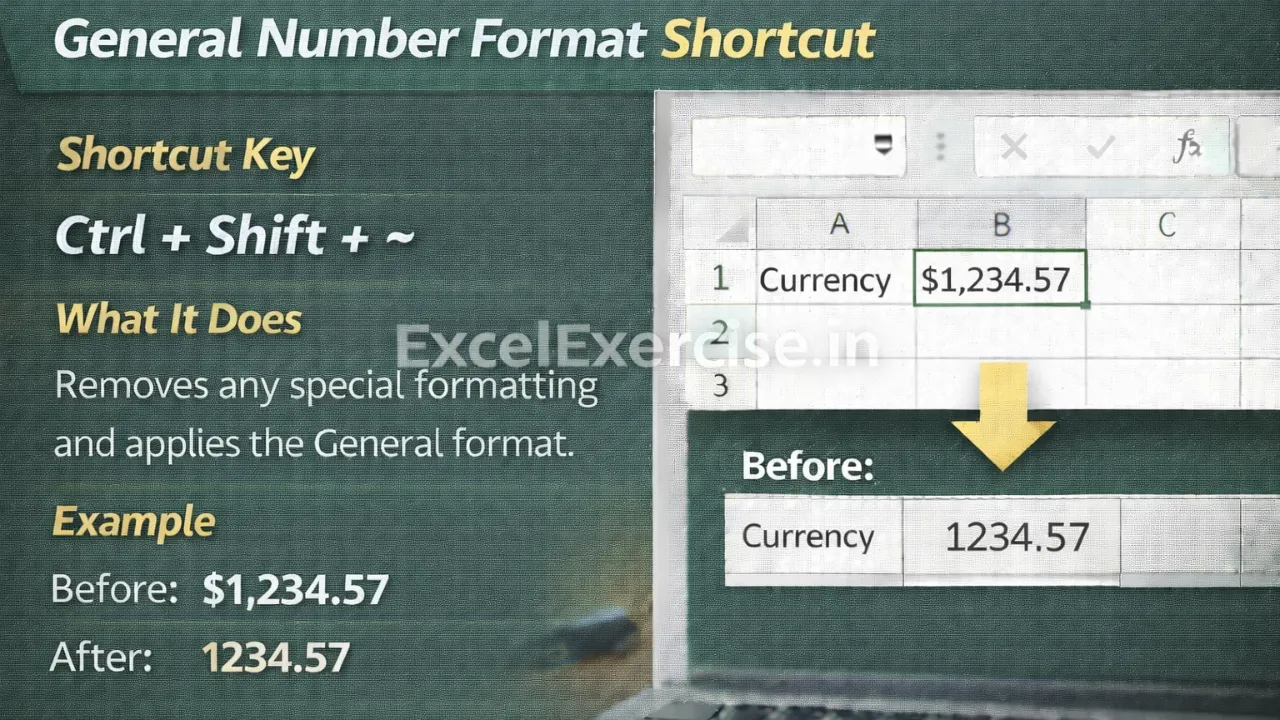
General Number Format Shortcut
Shortcut Key
Ctrl + Shift + ~
What It Does
Removes any special formatting and applies the General format.
When to Use
- When formatting looks wrong
- To reset numbers to default format
- While fixing calculation errors
Increase Decimal Places Shortcut
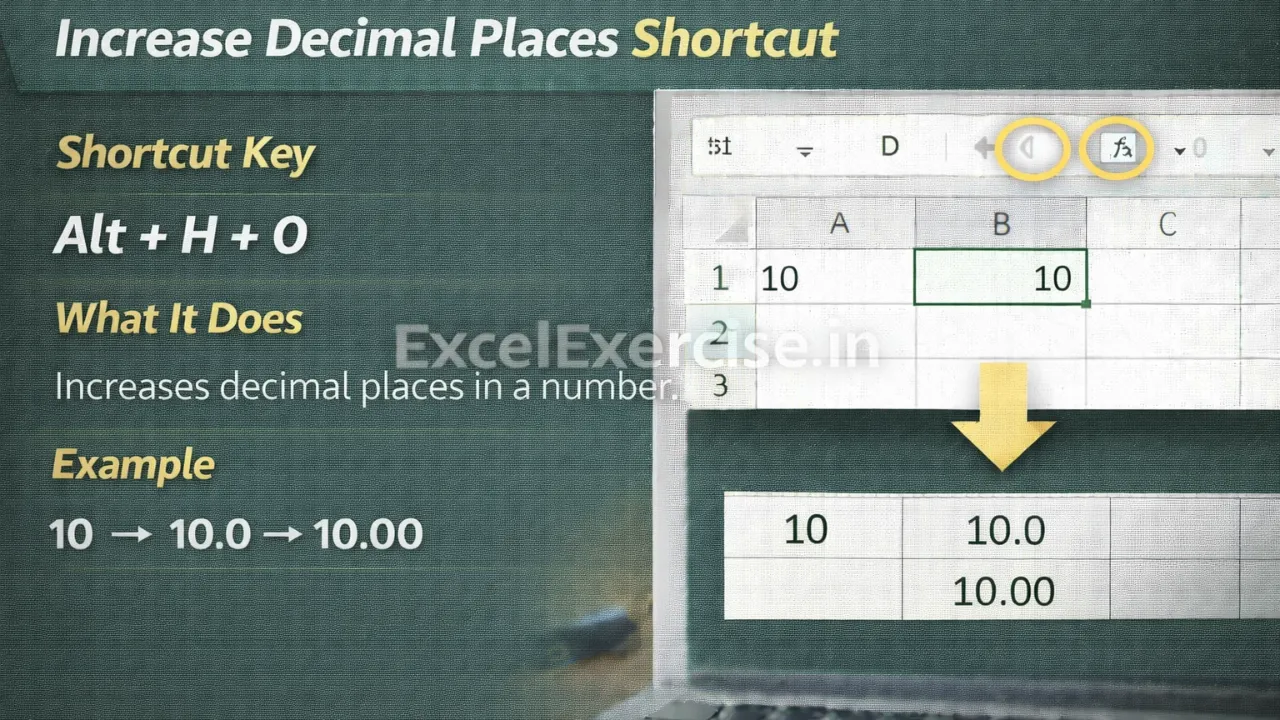
Shortcut Key
Alt + H + 0
What It Does
Increases decimal places in a number.
Example
- 10 → 10.0 → 10.00
Decrease Decimal Places Shortcut
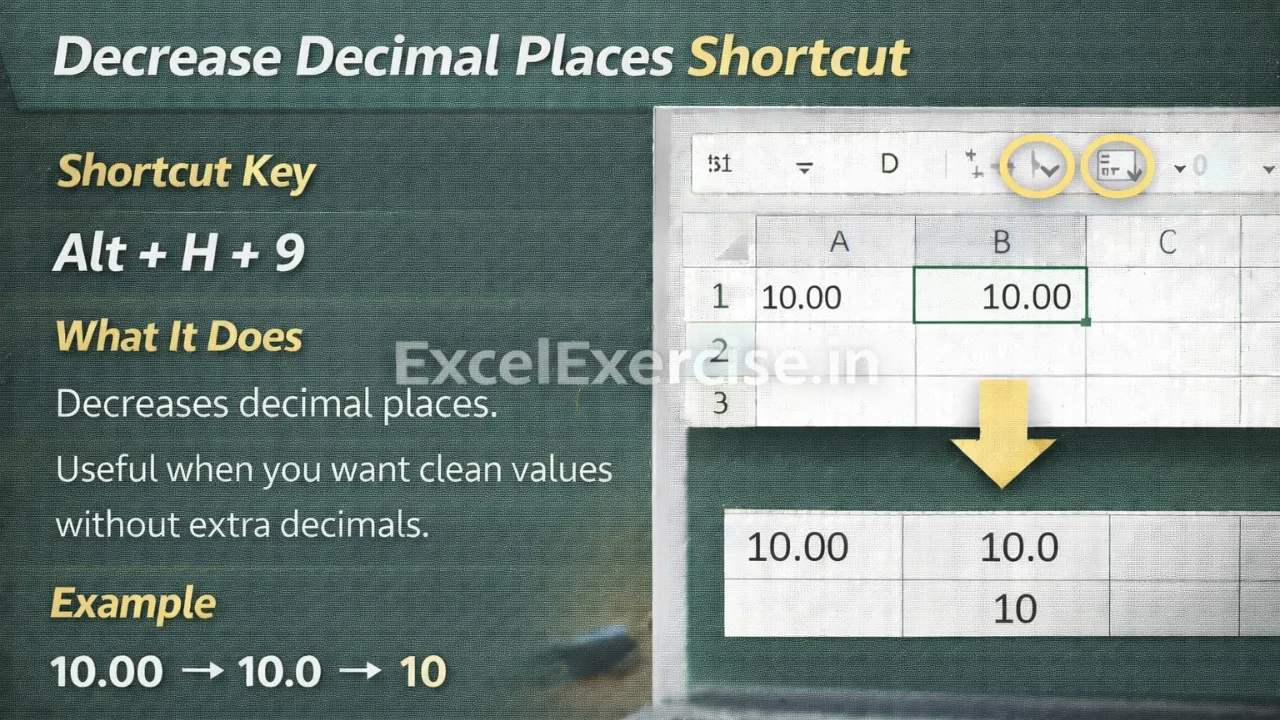
Shortcut Key
Alt + H + 9
What It Does
Decreases decimal places.
Useful when you want clean values without extra decimals.
Custom Number Formatting Tips (Bonus)
Although shortcuts are fast, knowing custom formatting helps you stand out:
- Display numbers in thousands (K) or lakhs
- Hide zero values
- Add text like “Rs” or “Marks” with numbers
- Control decimal visibility
These are commonly used in professional Excel reports.
Common Mistakes to Avoid While Formatting Numbers
- Formatting numbers as text accidentally
- Using too many decimal places
- Applying currency format where number format is needed
- Forgetting to reset format before calculations
Using the correct shortcut avoids most of these issues.
Who Should Learn These Excel Number Formatting Shortcuts?
These shortcuts are extremely useful for:
- Students learning Excel
- Job seekers and freshers
- Office executives
- Accountants
- Data entry operators
- Government exam candidates
Excel number formatting shortcuts are small things, but they make a huge difference in speed and accuracy.
If you practice these shortcuts daily, you will notice faster work, cleaner reports, and better confidence in Excel.
Bookmark this page and start using these shortcuts today to work faster and smarter in Excel.