How to Change Currency Symbol in Excel (Step-by-Step Beginner Guide)
When working with money in Excel, you may notice that the currency symbol doesn’t match your requirement. For example, Excel might show $ when you need ₹, €, or £. Don’t worry—Excel makes it very easy to change the currency symbol. Here we will guide you about how to change Currency Symbol in Excel.
This guide is perfect for beginners and works well as a continuation of your Excel Currency Format Shortcut article.
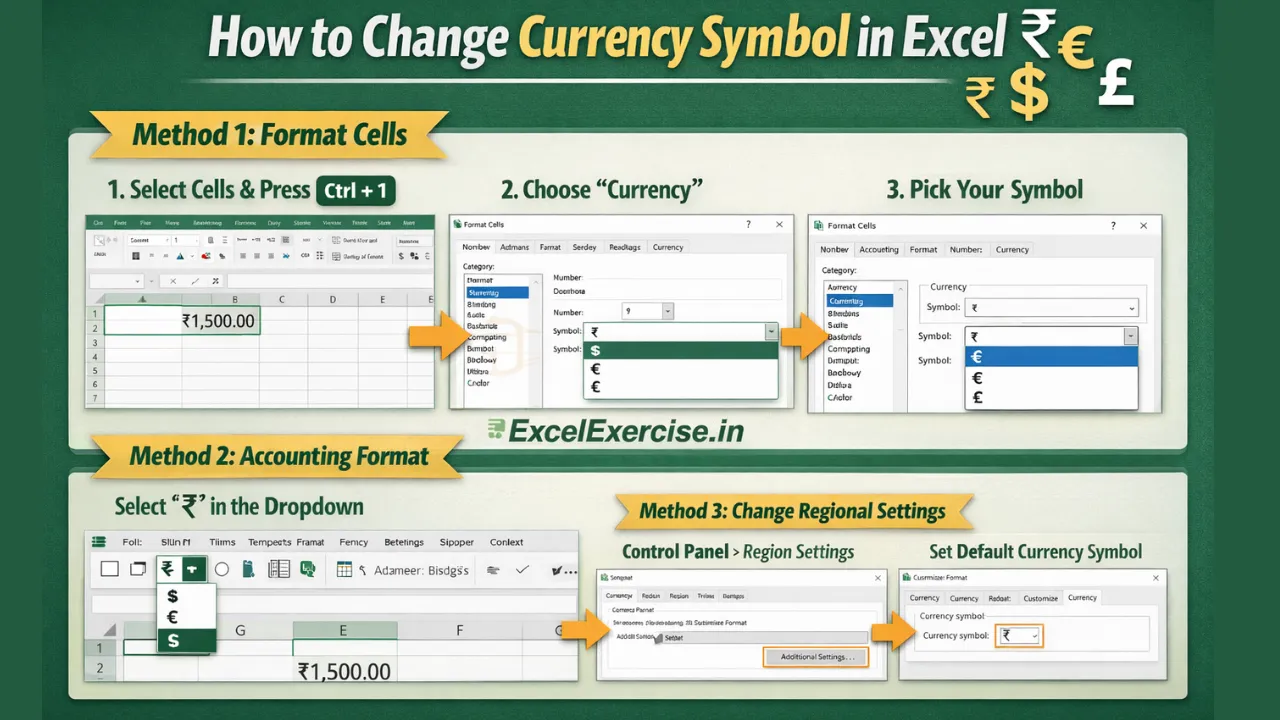
Method 1: Change Currency Symbol Using Format Cells (Most Common)
This is the easiest and most widely used method.
Steps:
- Select the cell or range of cells
- Press Ctrl + 1 (opens Format Cells)
- Go to the Number tab
- Select Currency
- Choose your preferred currency symbol (₹, $, €, £, etc.)
- Click OK
Example:
- Before:
$1,500.00 - After selecting ₹:
₹1,500.00
Method 2: Change Currency Symbol Using Accounting Format
Accounting format is often used in salary sheets and financial statements.
Steps:
- Select the cells
- Go to Home → Number Group
- Click the Accounting Number Format (₹ / $ icon)
- Use the dropdown to select another currency
This method aligns currency symbols neatly in a column, which looks very professional.
Method 3: Change Default Currency Symbol (System-Based)
Excel uses your system’s regional settings to decide the default currency.
Steps (Windows):
- Open Control Panel
- Go to Region
- Click Additional Settings
- Change the Currency Symbol
- Click Apply and OK
- Restart Excel
Now, shortcuts like Ctrl + Shift + $ will use the new default symbol.
Important Tip for Beginners
- Currency format → best for regular data entry
- Accounting format → best for reports, balance sheets, and salaries
Choose wisely based on your work.
Common Use Cases
- Converting
$to₹for Indian salary sheets - Using
€for international invoices - Switching between currencies in financial reports
Quick Summary
You can change the currency symbol in Excel by:
- Using Ctrl + 1 → Currency
- Using Accounting format
- Changing system regional settings
Why Beginners Should Learn This First
- Saves time
- Makes data look professional
- Reduces formatting mistakes
- Widely used in jobs, exams, and office work
Important links: