
This Excel Comma Style Shortcut Makes Large Numbers Easy to Read
The Excel Comma Style Shortcut allows you to quickly format large numbers by adding thousand separators and two decimal places. This shortcut improves readability and is ideal for reports, dashboards, and large numeric datasets where clarity matters. In this article we will teach about Excel Comma Style Number Format Shortcut, Excel shortcut for number format with decimal, Number format in Excel formula & More.
Excel Comma Style Number Format Shortcut
When working with large numbers in Excel, plain numeric values can be hard to read and understand at a glance. Comma Style formatting helps solve this problem by separating thousands and adding decimal places automatically.
Instead of manually formatting cells, Excel provides a quick shortcut to apply Comma Style instantly.
Excel comma style number format shortcut formula
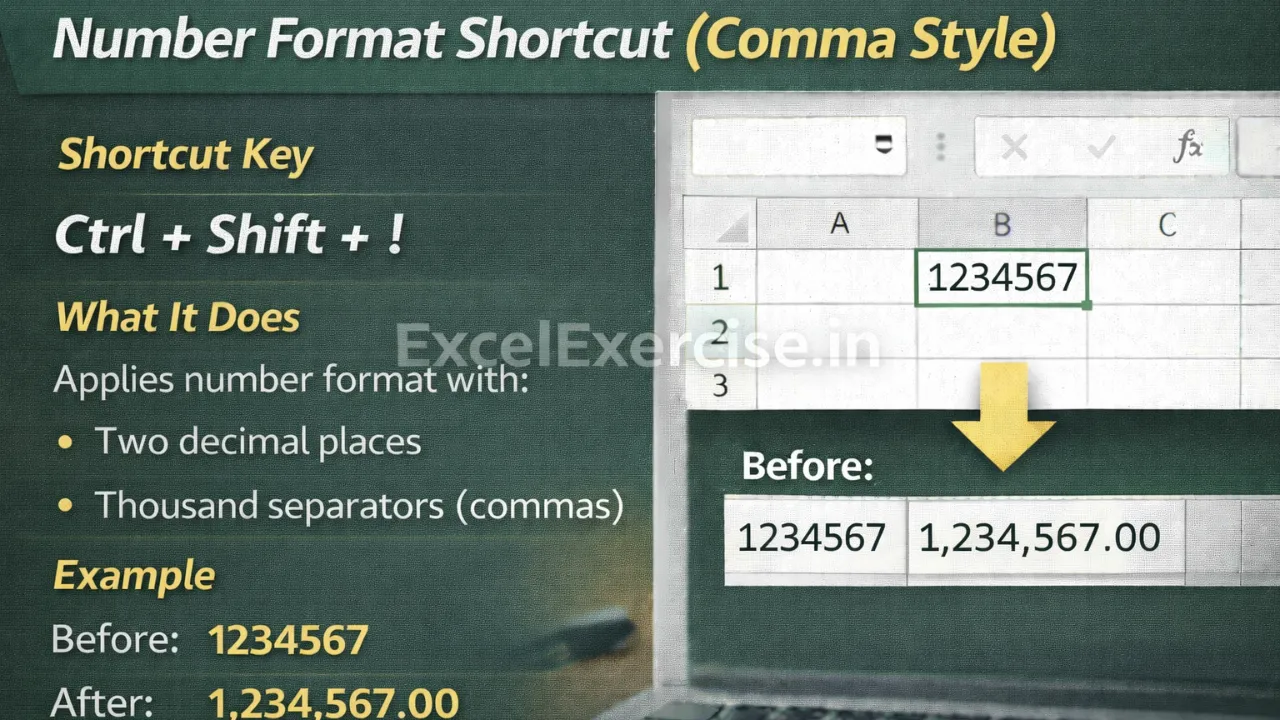
Shortcut Key
Ctrl + Shift + !
What This Shortcut Does
This shortcut applies the Comma Style number format to the selected cells. Once applied, Excel automatically:
- Adds thousand separators (commas)
- Displays two decimal places
- Keeps the value as a number for calculations
This formatting improves readability without changing the actual numeric value.
Excel shortcut for number format with decimal: Before and After Using Comma Style Shortcut
Before Applying Shortcut
1234567
After Applying Shortcut
1,234,567.00
More examples:
10000 becomes 10,000.00
2500000 becomes 2,500,000.00
Where Comma Style Shortcut Is Most Useful
Comma Style formatting is commonly used in:
- Large numeric data analysis
- Financial and sales reports
- Dashboards and summaries
- Business and accounting sheets in govt sector
- Performance and comparison tables
Important Point to Remember
This shortcut always applies two decimal places by default. If you do not need decimals, you can reduce them using the Decrease Decimal option after applying the format.
Why You Should Use Number format in Excel formula
Using keyboard shortcuts saves time and keeps your workflow fast. The Comma Style shortcut helps present large numbers in a professional and readable format without repetitive manual steps.
The Number format in Excel formula is a simple yet powerful tool for handling large numbers. By pressing Ctrl + Shift + !, you can instantly apply thousand separators and decimals, making your Excel sheets clearer and more professional.
Important links:



1 thought on “This Excel Comma Style Shortcut Makes Large Numbers Easy to Read”