
This Excel Decimal Shortcut Makes Numbers More Accurate
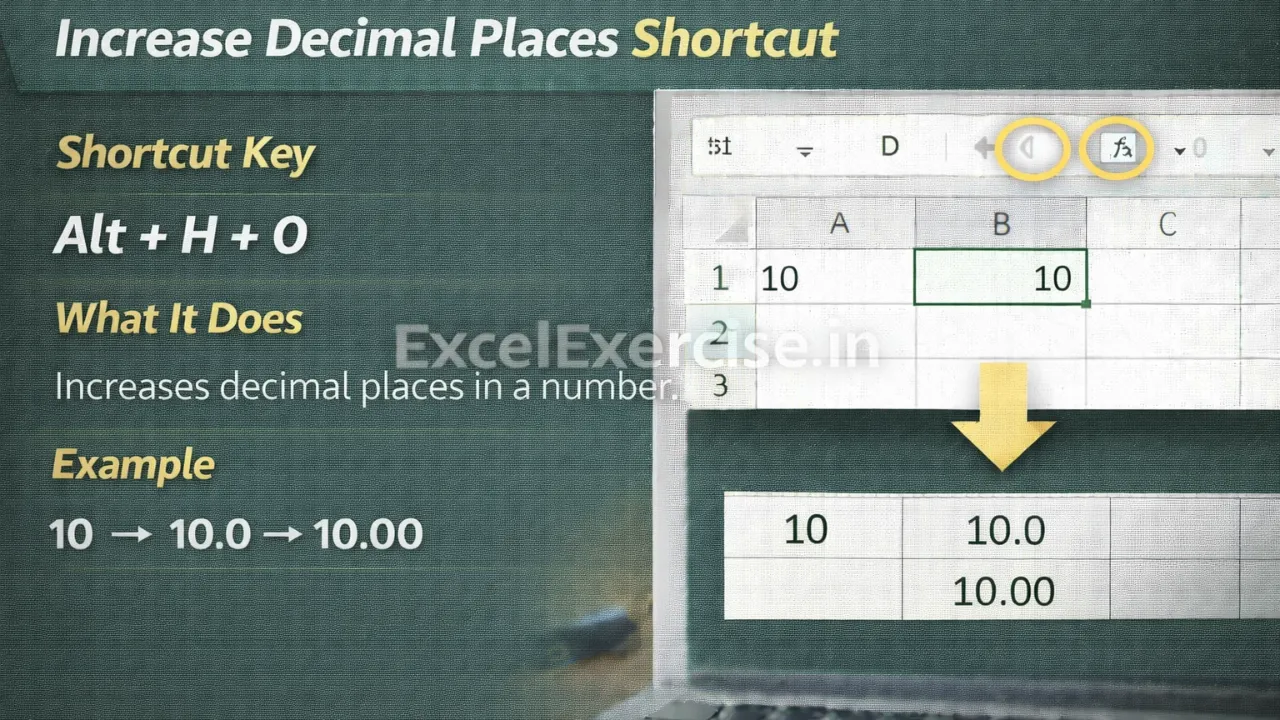
The Increase Decimal Places Shortcut in Excel helps you display more decimal values in a number without changing the original value. This shortcut is useful when you need higher precision for calculations, reports, or data analysis. In this article we will let you know about Shortcut Key for Increase Decimal Places.
Increase Decimal Places Shortcut in Excel
In many Excel sheets, numbers are rounded and do not show enough decimal places. This can make values look less accurate, especially when working with calculations, averages, or financial data.
Excel provides a simple shortcut that lets you increase decimal places instantly.
Shortcut Key for Increase Decimal Places
Shortcut Key
Alt + H + 0
What This Shortcut Does
This shortcut increases the number of decimal places shown in the selected cell. Each time you press the shortcut, Excel adds one more decimal place.
The actual value remains the same. Only the display of the number changes.
Example: Before and After Using Increase Decimal Shortcut
Before Applying Shortcut
10
After Applying Shortcut
10.0
10.00
Each press of the shortcut adds one more decimal place.
Where This Decimal Shortcut Is Useful
This shortcut is especially helpful when working with:
Calculated values and formulas
Averages and percentages
Financial and accounting data
Scientific or measurement-based data
Reports that require precise values
Important Thing to Remember
This shortcut only changes how many decimal places are displayed. It does not change the underlying number or affect calculations.
If you need fewer decimal places later, you can use the Decrease Decimal shortcut.
Why You Should Use Increase Decimal Shortcut in Excel
Using this shortcut helps you present data more accurately and professionally. It saves time and avoids manual formatting while ensuring clarity in numeric values.
The Increase Decimal Places Shortcut in Excel is a simple but powerful tool for improving number accuracy. By using Alt + H + 0, you can quickly display more precise values and work more efficiently in Excel.
Important links:


1 thought on “This Excel Decimal Shortcut Makes Numbers More Accurate”