
Excel Currency Format Shortcut Every Beginner Must Know
If you’re just starting with Microsoft Excel, learning a few keyboard shortcuts can instantly make you faster and more professional. One of the most useful and beginner-friendly shortcuts is the Excel Currency Format shortcut. It’s simple, powerful, and used almost everywhere financial data is involved. Here we will explain that how to Format numbers as currency in Excel, How to change currency symbol in Excel & more
Shortcut Key
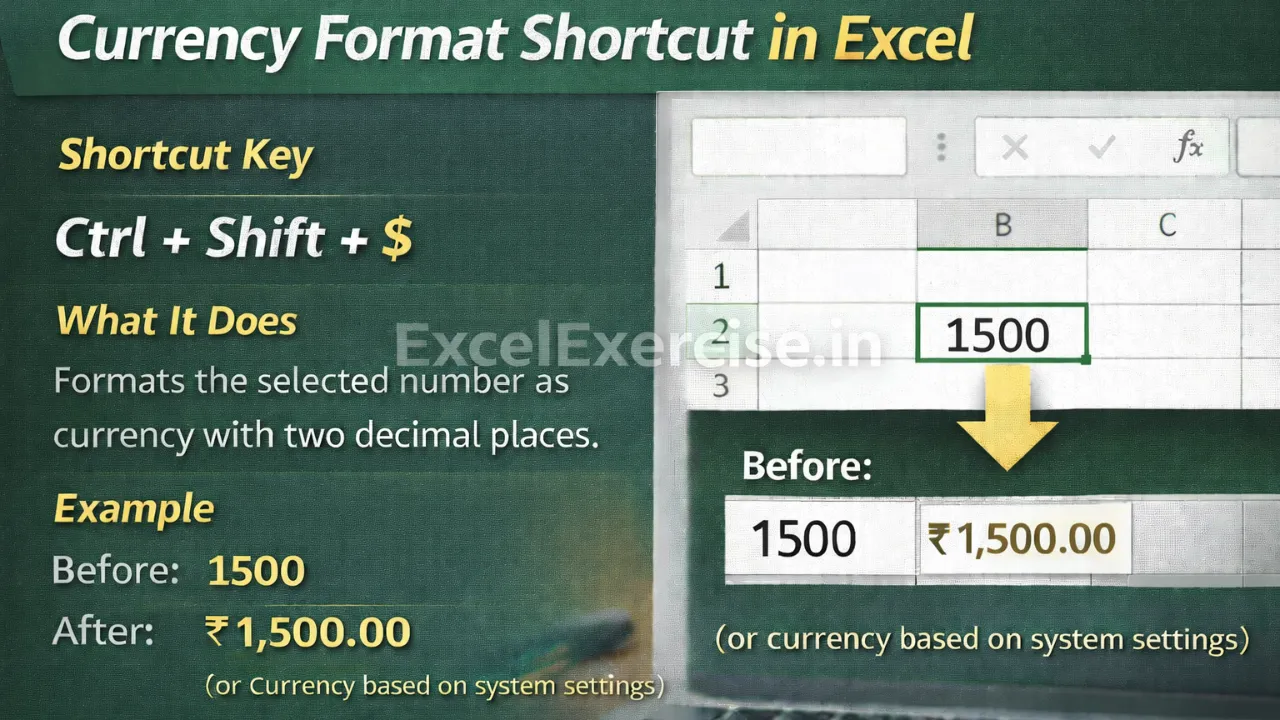
Shortcut Key: Ctrl + Shift + $
What It Does: Formats the selected number as currency with two decimal places.
Example:
Before: 1500
After: ₹1,500.00 (or currency based on system settings)
What This Shortcut Does
When you select any number (or range of numbers) and press Ctrl + Shift + $, Excel:
- Format numbers as currency in Excel
- Adds the currency symbol (₹, $, €, etc.)
- Applies two decimal places
- Uses comma separators for better readability
The currency symbol depends on your system or regional settings.
Simple Example of Excel Currency Format Shortcut
- Before:
1500 - After:
₹1,500.00
No manual formatting, no menus—just one shortcut.
Where This Shortcut Is Commonly Used
This shortcut is extremely popular in day-to-day Excel work, especially for beginners:
Salary Sheets
HR teams and accountants use it to quickly format salaries, allowances, and deductions.
Financial Reports
Profit, loss, income, expenses, and budgets look clean and professional with proper currency formatting.
Expense Tracking
Personal or office expense sheets become easier to read and understand when amounts are shown in currency format.
Why Beginners Should Learn This First
- Saves time
- Makes data look professional
- Reduces formatting mistakes
- Widely used in jobs, exams, and office work
Pro Tip for Beginners
You can first select an entire column and then press Ctrl + Shift + $ to format all values at once—perfect for large datasets.
How to change currency symbol in Excel
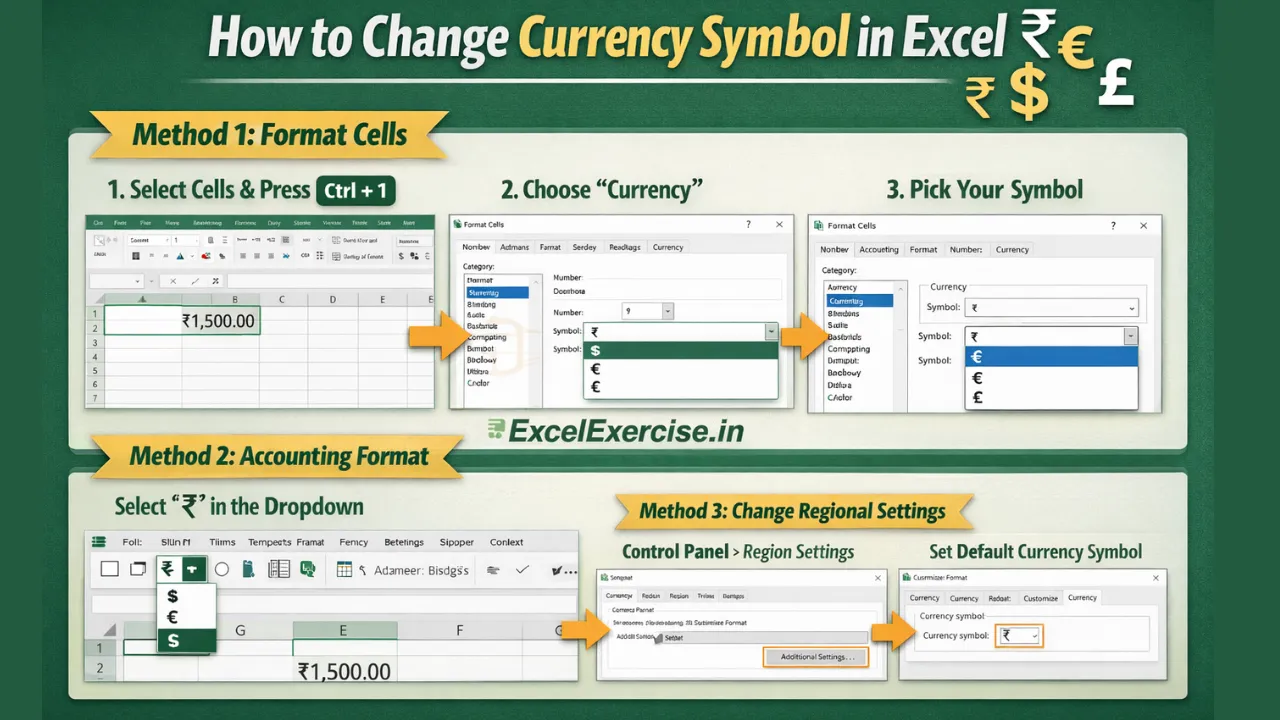
If you want to change the currency symbol in Excel (₹, $, €, £), select the cells and press Ctrl + 1 to open Format Cells. Go to the Number tab, choose Currency, and select your preferred symbol. Excel will instantly update the selected values. This is useful when working with salary sheets, financial reports, or international data where different currencies are required.
Common Uses of Excel Currency Format Shortcut:
- Salary sheets
- Financial reports
- Expense tracking
Important links:

1 thought on “Excel Currency Format Shortcut Every Beginner Must Know”