Most Excel Users Don’t Know This Time Format Shortcut
The Time Format Shortcut in Excel allows you to instantly convert numeric values into time format using a simple keyboard shortcut. This shortcut is very helpful when working with attendance sheets, shift timings, and time-tracking data where values appear as numbers instead of proper time. In this article we will guide you about Shortcut Key for Time Format in Excel.
Time Format Shortcut in Excel
In Excel, time values are often stored as decimal numbers. When data is imported or calculated, time may appear in numeric form, making it difficult to understand at a glance.
Instead of manually changing the format every time, Excel provides a quick shortcut to apply time formatting instantly.
Shortcut Key for Time Format in Excel
Shortcut Key
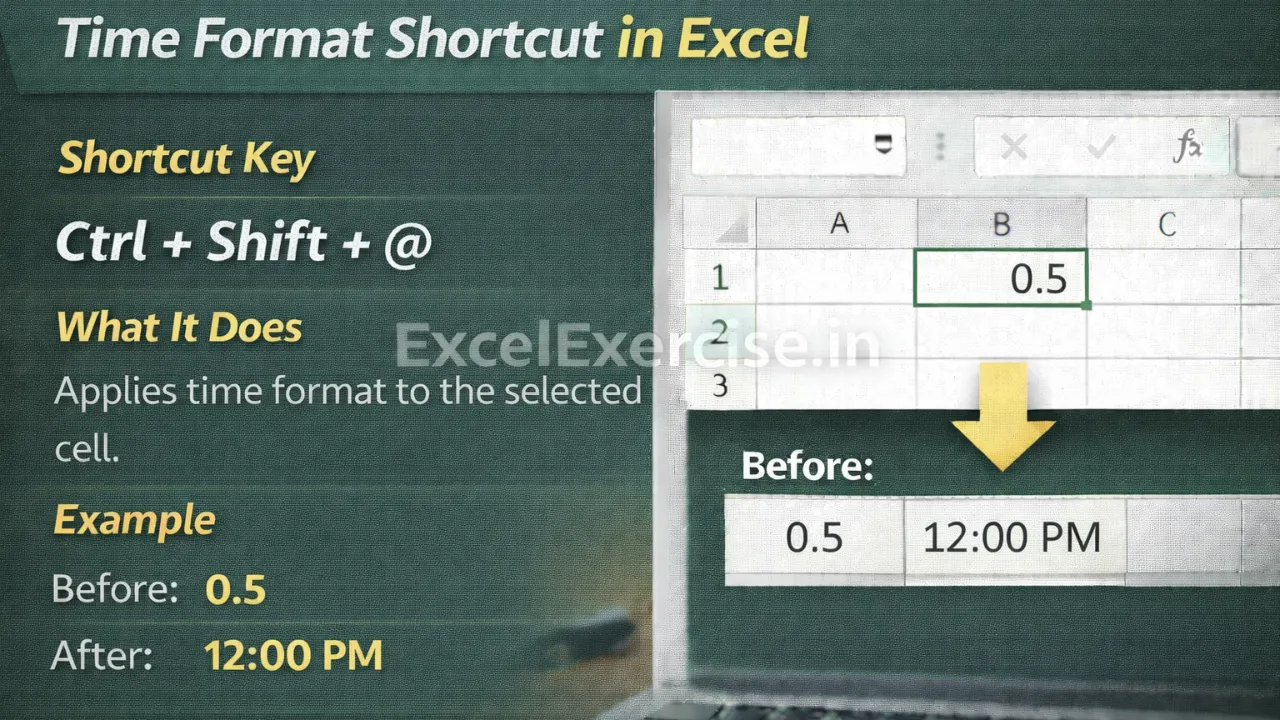
Ctrl + Shift + @
What This Shortcut Does
This shortcut applies the time format to the selected cell. Excel converts the numeric value into a readable time based on the default time format of your system.
The actual value remains unchanged and can still be used for calculations.
Example: Before and After Using Time Format Shortcut
Before Applying Shortcut
0.5
After Applying Shortcut
12:00 PM
Another example:
0.25 becomes 6:00 AM
0.75 becomes 6:00 PM
Where This Formula Is Helpful
This shortcut is especially useful when working with:
- Attendance sheets
- Employee shift timings
- Time tracking and logging
- Office schedules
- Work-hour calculations
- Helpful for govt jobs and private jobs
Important Thing to Remember
Excel stores time as a fraction of a day. Because of this, the displayed time depends on the numeric value and your system’s time format settings. If needed, you can further customize the time display using Format Cells.
Why You Should Use this Shortcut for date format in Excel
Using keyboard shortcuts helps you work faster and reduces repetitive formatting tasks. This time format shortcut makes your data clearer and more professional, especially when handling large datasets.
The Shortcut for date format in Excel is a simple yet powerful feature that many users overlook. By using Ctrl + Shift + @, you can quickly convert numeric values into time format and manage time-based data more efficiently.
Important links: