Still Changing Date Format Manually in Excel? Use This Shortcut
The Date Format Formula in Excel helps you instantly convert numeric values into a readable date format. This shortcut is extremely useful when working with raw or imported data where dates appear as numbers instead of proper dates. In this article we will guide you about Date Format Shortcut in Excel, Shortcut Key for Date Format in Excel, Date format shortcut in excel formula & More.
Date Format Shortcut in Excel
When you import data from other systems or copy data from external sources, dates often appear as plain numbers in Excel. Manually formatting each cell can be time-consuming and frustrating.
Excel provides a simple shortcut that converts these numbers into date format instantly.
Shortcut Key for Date Format in Excel
Shortcut Key
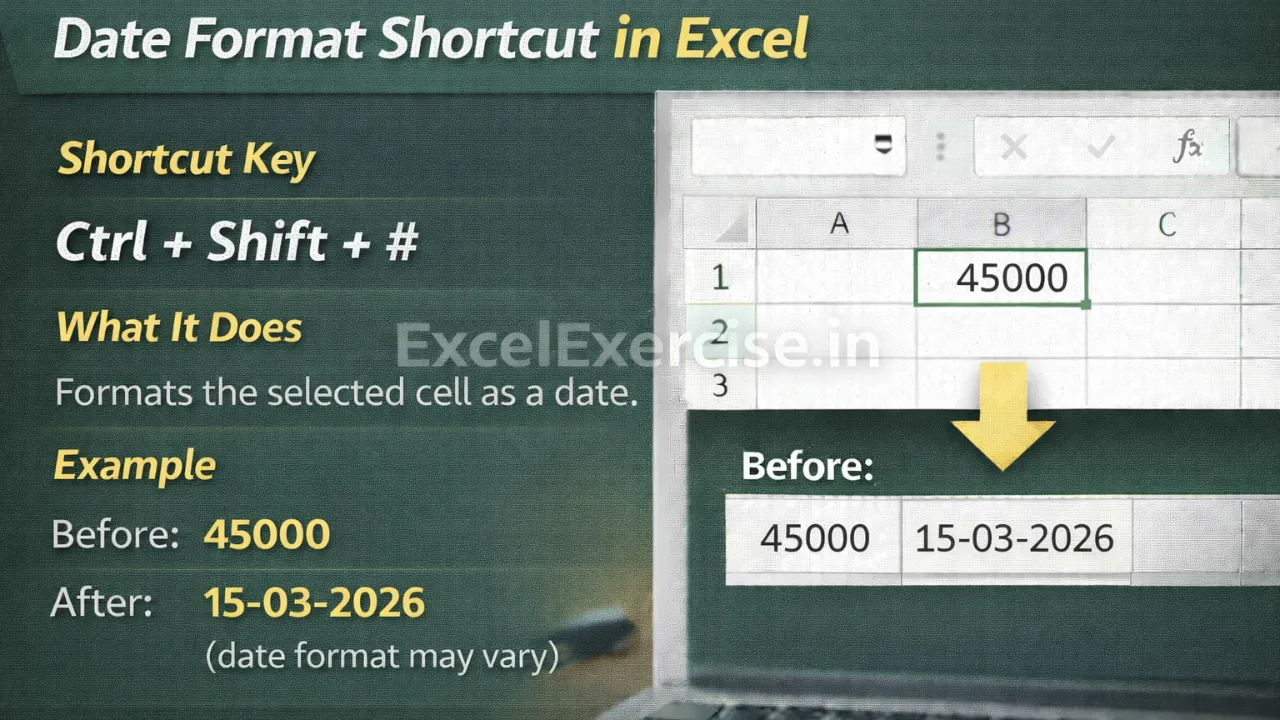
Ctrl + Shift + #
What This Shortcut Does
This shortcut formats the selected cell as a date. Excel automatically converts the numeric value into a date based on your system’s default date format.
The original value remains unchanged in the background and can still be used for calculations.
Example: Before and After Using Date format shortcut in excel formula
Before Applying Shortcut
45000
After Applying Shortcut
15-03-2026
(date format may vary depending on system settings)
Where This Date Format Shortcut Is Very Useful
This shortcut is especially helpful in situations such as:
- Working with raw Excel data
- Importing data from CSV or text files
- Fixing date values copied from websites or software
- Cleaning large datasets quickly
- Preparing reports with correct date formatting
- Managing recruitment data, result sheets, and application dates for job-related websites
Important Thing to Remember
Excel stores dates as serial numbers internally. This shortcut only changes how the value is displayed, not the actual stored number. If your system date format is different, the displayed date format may also differ.
You can further customize the date format using the Format Cells option if required.
Why You Should Use Date format shortcut formula
Using this shortcut saves time and ensures consistency across your Excel sheets. It eliminates repetitive manual formatting and helps maintain clean, professional-looking data.
The Date Format Shortcut is a must-know tool for anyone working with data regularly. By pressing Ctrl + Shift + #, you can instantly convert numeric values into readable dates and work more efficiently.
Important links: